Skyvia Facebook Ads Replication Completed but the BigQuery Table Is Empty
A Skyvia Facebook Ads replication can finish successfully yet leave the BigQuery table empty or stale. Diagnose the cause with a clear checklist and non-destructive BigQuery SQL.
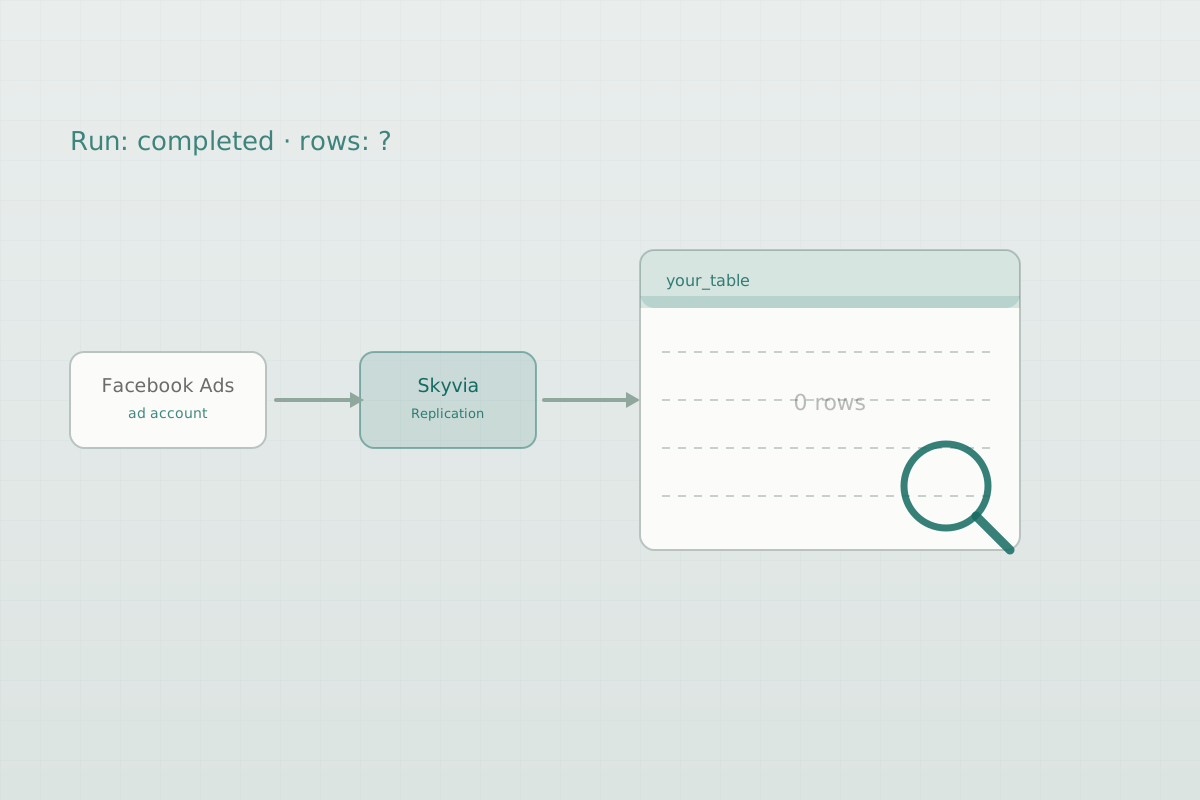
A completed Skyvia replication does not guarantee that rows were written to BigQuery. “Completed” means the package ran without a fatal error — not that the Facebook Ads source returned data or that the rows landed where you are looking.
When a run reports success but the expected table, rows, or recent data are missing, the cause is almost always one of a small set of situations: the data was written to a different project or dataset, the run extracted zero rows (nothing new, the wrong object, an empty source, or a date filter), the table was never created, or the connected ad account and permissions blocked access. This guide isolates which one applies.
A note on naming: Facebook Ads is the exact name of Skyvia’s connector. The platform itself is commonly called Meta Ads. The two refer to the same source.
Start here: an 8-step troubleshooting sequence
Work through these in order. Each step narrows the cause before you change anything.
- Confirm the BigQuery project and dataset the Skyvia connection writes to.
- List the destination tables in that dataset.
- Check whether the expected table exists (and when it was created).
- Count the rows — total and recent.
- Inspect the Skyvia run results at the object level (
Success Rows). - Verify the source object and connected ad account.
- Check date filters and incremental settings.
- Run a small, controlled test against known activity.
The pipeline you are validating:
Facebook Ads (ad account)
      │  Skyvia Replication package  →  Run History: Success Rows?
      ▼
BigQuery  →  project  →  dataset  →  table  →  SQL validation (rows, dates, columns)
The BigQuery SQL below is read-only and safe to run. Queries against INFORMATION_SCHEMA and __TABLES__ read metadata only and do not scan table data. If you are new to BigQuery SQL, the core SQL queries for data analysis cover the basics used here.
Replace the placeholders throughout: your-project, your_dataset, your_table, and date_column.
Step 1 — Confirm the BigQuery project and dataset
The first place to check is where Skyvia is writing. A Skyvia Google BigQuery connection is configured with a Project ID and a Dataset (the dataset ID is entered without its project prefix). Rows land in that project and dataset — which is not necessarily the one open in your BigQuery console.
Open the BigQuery connection in Skyvia and note its Project ID and Dataset. Then confirm you are inspecting the same location in BigQuery. A mismatch here explains the single most common version of this problem: the replication worked, but you are looking in the wrong place.
Step 2 — List the tables in that dataset
List every table Skyvia could have created in the target dataset:
SELECT
  table_name,
  table_type,
  creation_time
FROM `your-project.your_dataset`.INFORMATION_SCHEMA.TABLES
ORDER BY creation_time DESC;
Skyvia creates one table per replicated object automatically, named after that object (for example, an insights object such as AdInsights). This query confirms whether the expected table exists at all.
- If the table is not listed, it was never created in this dataset — the object was not added to the package, or the package targets a different dataset or project (return to Step 1).
- If it is listed, note its
creation_timeand continue.
Step 3 — Check the table exists and when it was created
For a fast, no-scan view of every table’s row count and timestamps, query the dataset’s __TABLES__ metadata:
SELECT
  table_id,
  row_count,
  TIMESTAMP_MILLIS(creation_time)      AS created,
  TIMESTAMP_MILLIS(last_modified_time) AS last_modified
FROM `your-project.your_dataset.__TABLES__`
ORDER BY last_modified DESC;
This query proves three things without reading any rows:
- whether the table exists,
- its
row_count(metadata count for batch-loaded tables like Skyvia’s), and - when it was last modified — i.e. whether the recent run touched it.
If row_count is 0, the table exists but is empty; go to Step 5. If last_modified is older than your last run, the run did not write to this table.
Step 4 — Count the rows, total and recent
Confirm the count directly, and separately check for recent rows:
-- Total rows
SELECT COUNT(*) AS row_count
FROM `your-project.your_dataset.your_table`;

-- Rows in the last 7 days (use the object's date field, e.g. DateStart)
SELECT COUNT(*) AS recent_rows
FROM `your-project.your_dataset.your_table`
WHERE date_column >= DATE_SUB(CURRENT_DATE(), INTERVAL 7 DAY);
Interpreting the result:
row_count = 0— the table is empty. The run wrote nothing; continue to Step 5.row_count > 0butrecent_rows = 0— historical data exists, recent data does not. This points to incremental or date-window settings (Step 7).
Step 5 — Read the Skyvia run history
This is the pivotal check. A completed run does not necessarily mean rows were extracted.
Open the package’s Run History. For each run, the Success Rows column shows the total rows inserted, updated, and deleted, and the Error Rows column shows failed rows. Click a run to open History Details for the per-table breakdown.
Success Rows = 0andError Rows = 0— the run completed but extracted nothing. The source returned no rows for the selected objects. Causes: nothing new since the last run, an empty source object, the wrong object, or a date filter (Steps 6–7).Error Rows > 0— rows failed to load. Open the failed-row detail (Skyvia exposes failed rows as a downloadable CSV of per-record errors) to read the reason, which often points to permissions or schema issues.
Step 6 — Verify the source object and connected ad account
If the run extracted zero rows, inspect what it was pointed at.
The connected ad account. A Skyvia Facebook Ads connection is authorized through Sign In with Facebook and is bound to a specific Ad Account ID entered during setup. If that ID belongs to a different account than the one with your campaigns, the tables populate from the wrong account — often with no rows. Confirm the Ad Account ID in the Skyvia connection matches the account shown in Facebook Ads Manager (visible above the search bar, in the account dropdown, or in the page URL).
The selected object. Metrics such as spend and impressions live only in the Insights objects (AccountInsights, CampaignInsights, AdSetInsights, AdInsights, and their Daily/Monthly variants). Structural objects such as Campaigns, AdSets, and Ads contain configuration, not performance metrics. If the table exists but the metric columns you expected are absent, the wrong object was replicated. Inspect the columns to confirm:
SELECT column_name, data_type
FROM `your-project.your_dataset`.INFORMATION_SCHEMA.COLUMNS
WHERE table_name = 'your_table'
ORDER BY ordinal_position;
Accessible rows in the source. Even the correct object can legitimately return nothing. Draft-status campaigns are not shown by default, and an account with no delivery in the selected period has no insights rows to return. Confirm in Ads Manager that the account has active, non-draft campaigns with delivery in the period you expect.
Step 7 — Check date filters and incremental settings
Facebook Ads Insights objects are date-bound. Two settings commonly exclude the data you are looking for.
Default reporting windows. On the initial run, Skyvia replicates a bounded history: Daily insights default to roughly the last 6 months and Monthly insights to roughly the last 36 months. Data outside that window is not loaded unless the object’s date range is widened. Backfilling older data is a separate task.
Incremental state. Skyvia’s incremental replication tracks Facebook Ads changes using the DateStart/DateStop fields and, on subsequent runs, loads only records changed since the previous run. On a steady-state package this is expected behavior: a subsequent run with nothing new completes with Success Rows = 0. That is not an error.
An explicit filter. If the object was configured with a DateStart/DateStop filter (operators >=, >, <=, <), rows outside that range are excluded by design. Review the object’s filter in the package.
Check what the table actually spans:
SELECT
  MIN(date_column) AS earliest,
  MAX(date_column) AS latest
FROM `your-project.your_dataset.your_table`;
If latest is older than expected, recent data was never in scope — a date window, incremental state, or schedule gap is the cause, not a failed load. Note also that current, still-forming periods can be intentionally withheld, since incomplete data may otherwise appear for the most recent days.
Step 8 — Preview the rows
Before changing anything, look at what is present:
SELECT *
FROM `your-project.your_dataset.your_table`
LIMIT 20;
A preview confirms the shape of the data — which object was loaded, which columns are populated, and whether the values match the expected ad account. Combined with Steps 5–7, this usually resolves the diagnosis.
Match your symptom to a cause
| Symptom | Likely cause | What to check |
|---|---|---|
| Package completed, but the table does not exist | Object not added, or package targets another dataset/project | Step 1 connection Project ID/Dataset; Step 2 INFORMATION_SCHEMA.TABLES |
| Table exists with zero rows | Run extracted nothing; empty source, wrong object, or filter | Step 5 Success Rows; Step 6 object & ad account |
| Data appears in another dataset | Skyvia BigQuery connection points elsewhere | Step 1 connection settings vs the dataset you are querying |
| Only old data is visible; no recent rows | Default date window, incremental state, or schedule gap | Step 7 MIN/MAX(date_column); object date range |
| Rerunning does not change the row count | Incremental run with nothing new to replicate | Step 5 Success Rows = 0; this is expected on steady state |
| Expected metrics or fields are missing | A structural object (Campaigns/Ads) was replicated, not Insights | Step 6 INFORMATION_SCHEMA.COLUMNS; switch to an Insights object |
| Rows belong to the wrong account | Connection bound to the wrong Ad Account ID | Step 6 Ad Account ID vs Ads Manager |
| Run shows failed rows | Permissions, token, or schema error | Step 5 Error Rows; download the per-record error CSV; re-authorize |
Run a small, controlled test
When the diagnosis is still unclear, isolate the pipeline with a minimal run. The goal is to remove every variable except one known-good path.
- Use one known ad account — one whose activity you can verify in Ads Manager.
- Select one verified object — an Insights object that carries metrics, such as
AdInsightsor a Daily insights variant. - Set a small date range with known activity — a
DateStart/DateStopfilter covering a few days when the account definitely delivered. - Write to a clearly named test destination — a separate dataset or a table such as
fb_test_adinsights, so the test cannot disturb your production tables. - Trigger a manual run rather than waiting for the schedule.
- Verify with SQL:
SELECT COUNT(*) AS test_rows
FROM `your-project.your_dataset.fb_test_adinsights`;
If test_rows > 0, the connection, ad account, object, and destination all work — which means the original problem is a configuration difference (object, filter, dataset, or incremental state), not a broken pipeline. If the controlled test still returns 0, inspect the run’s Success Rows and Error Rows, then re-check the ad account authorization.
FAQ
Why did Skyvia complete successfully without loading rows?
Because “completed” describes the run finishing without a fatal error, not the amount of data moved. If the source returned no rows for the selected objects — nothing new since the last run, an empty object, or a date filter — the run completes with Success Rows = 0.
How do I find the table Skyvia created?
Skyvia creates one table per replicated object in the Project ID and Dataset set in its BigQuery connection, named after the object. List them with the INFORMATION_SCHEMA.TABLES query in Step 2, and confirm you are querying the same project and dataset the connection targets.
Why is historical data visible but recent data missing?
Insights are date-bound. Recent rows can be excluded by the initial reporting window, an incremental run that found nothing new, an explicit DateStart/DateStop filter, or the deliberate withholding of current, still-incomplete periods. Compare MAX(date_column) against the period you expect.
Should I delete and recreate the package? Not as a first step. Deleting the package removes its incremental state and forces a full reload without confirming the cause. Work through the checklist first; recreate only if a controlled test proves the package configuration itself is broken.
Is Skyvia’s Facebook Ads connector the same as Meta Ads? Yes. Skyvia labels the connector Facebook Ads; it connects to the same advertising platform now branded Meta Ads.
Key takeaways
- A completed Skyvia run does not guarantee rows in BigQuery — always confirm
Success Rowsin the Run History. - Verify the Project ID and Dataset in the Skyvia BigQuery connection before assuming data is missing; it may be in another location.
- Use metadata queries (
INFORMATION_SCHEMA.TABLES,__TABLES__) to check existence, creation time, and row counts without scanning data. - Zero rows usually means the wrong object (structural instead of Insights), the wrong Ad Account ID, an empty source period, or a date/incremental filter — not a failed load.
- A subsequent incremental run with
Success Rows = 0is expected when nothing new has changed. - Confirm the fix with a small, clearly named controlled test before changing production settings.
Related
- How to calculate Meta Ads ROAS in BigQuery — once the table has rows, turn them into a return-on-ad-spend report.